What is a Toposolid and How Does It Work?

Most explanations of the Toposolid still describe it as "a Toposurface with thickness". That was roughly true in Revit 2024, when the element first shipped. It undersells what it has become. Since then Autodesk has added excavation, recessed sub-divisions, configurable point limits and better cut and fill reporting, so a Revit 2026 Toposolid behaves quite differently from the 2024 one.
This post explains what a Toposolid is, what changed in each release from 2024 to 2027, and how to build one from elevation data. Where a claim is about Revit's behaviour, it quotes Autodesk's own help pages so you can check it against your version.
What is a Toposolid in Revit?
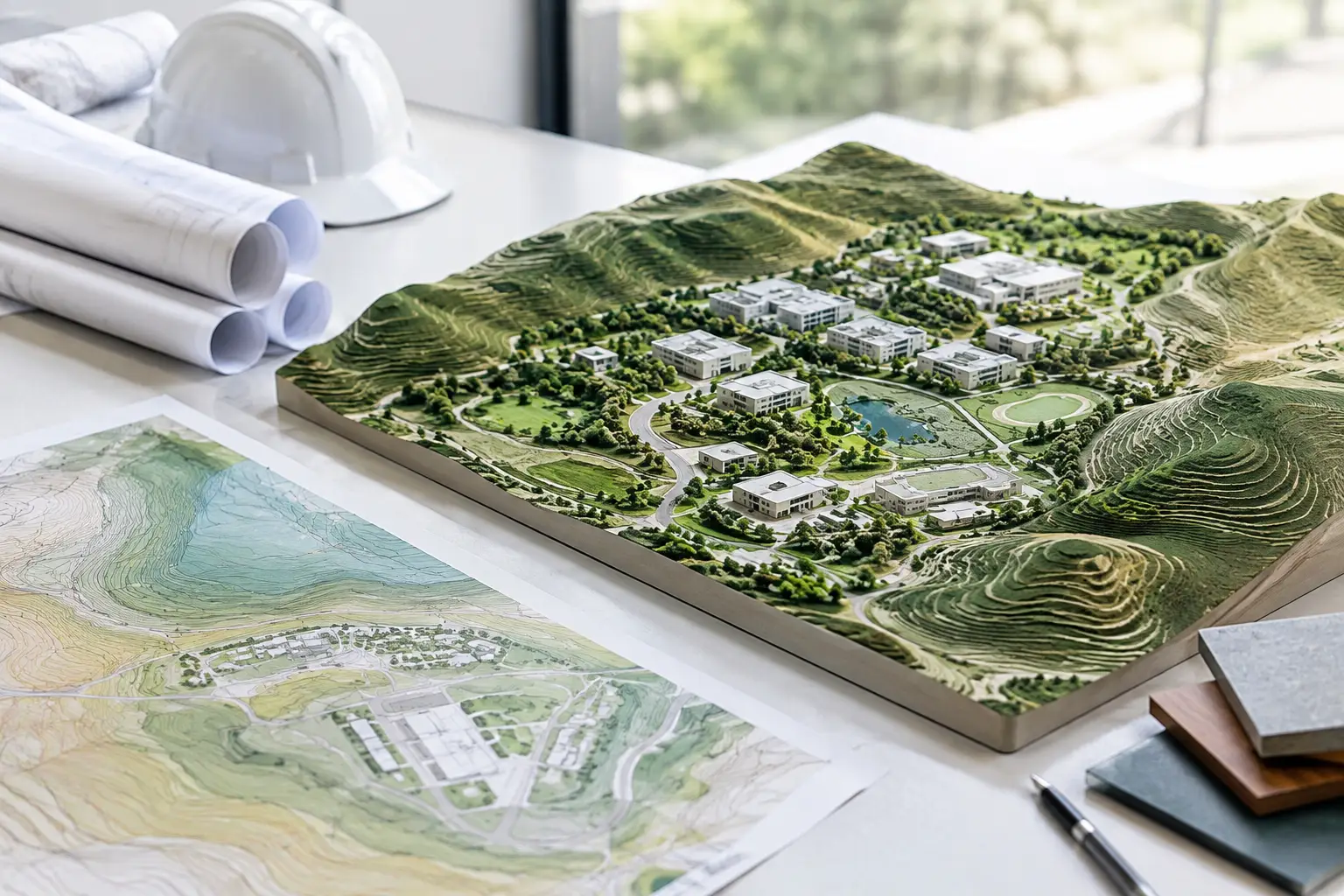
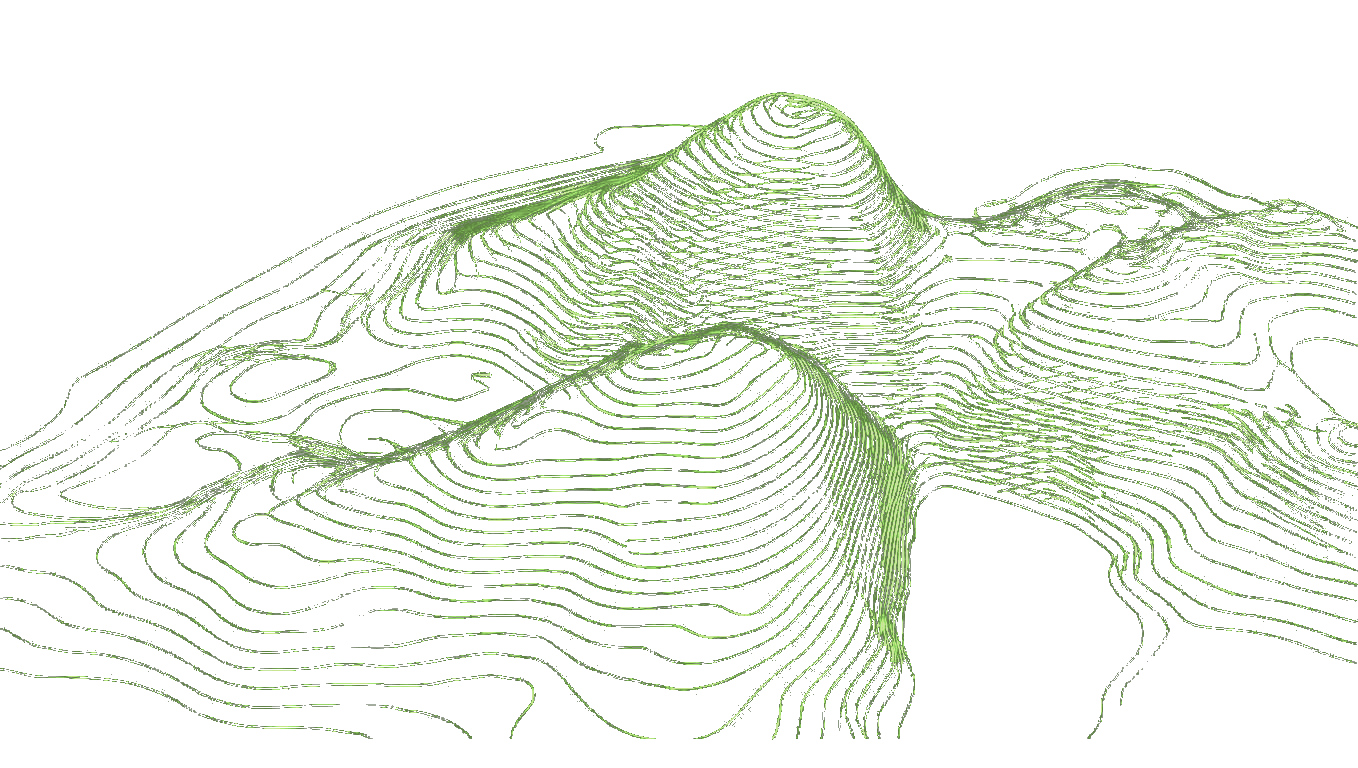
A Toposolid is Revit's element for site terrain. Autodesk's Revit 2024 release notes describe it in one line: "Create topographic elements as solid geometry." The same page says Toposolids "are created from imported CAD or CSV files", or by "sketching a boundary and adding elevation points within the boundary", and that they "can be cut by other model geometry" (Autodesk, What's New in Revit 2024: Toposolids).
In practice it behaves like a floor whose top face is shaped by elevation points. It has a type, a thickness, compound layers and materials. That is the difference that matters day to day: you can cut a section through the site and see soil depth, host elements on it, and let other elements excavate it.
The Toposolid lives on the Massing & Site tab > Model Site panel > Toposolid, with four creation and editing routes: Create from Sketch, Create from Import, Sub-Divide and Graded Region (Autodesk, Toposolids, Revit 2026 help).
What happened to the Toposurface?
From Revit 2024 the Toposolid replaced the Toposurface as the terrain tool for new work. Older models that contain Toposurfaces still open, and you can convert them. Autodesk's route is: select the Toposurface, then Modify | Topography tab > Surface panel > Generate Toposolid, choose a base level and a type (Autodesk, Generate a Toposolid from a Toposurface).
Three details from that page are worth knowing before you convert a live project:
- The conversion is non-destructive. Autodesk: "The toposurface will remain in the model after the toposolid is generated."
- Sub-regions become Toposolid sub-divisions, but "some sub-regions may fail if they contain many loops", for example a striped crosswalk drawn as one sub-region.
- "Site components (trees, parking elements, custom families) will need to be manually re-hosted." Railings re-host automatically.
Revit 2025 improved the conversion for files with Building Pads: Autodesk's 2025 notes say converting "retains the building pads as excavated areas on the toposolid" (Autodesk, What's New in Revit 2025: Toposolid Enhancements). Building Pads themselves are a legacy Toposurface feature. In current versions you get the same result with Excavate.
For the longer story of what was removed and why, see Toposolid versus Toposurface: what changed in Revit 2024.
What changed in each Revit version?
| Revit | What Autodesk added or changed for Toposolids |
|---|---|
| 2024 | Toposolid introduced as solid terrain, created from sketch or imported CAD/CSV. Replaces Toposurface for new work. |
| 2025 | Excavate with a floor, roof or another Toposolid. Shafts stop at their bottom instead of cutting through. Hosting on cut surfaces. Top Plane elevation base for point editing. Toposolid from a mass face. Smooth Shading. Contours stay visible while editing. Better Toposurface conversion. |
| 2026 | Sub-divisions follow the host and can take a negative offset to recess (roads, paths), with excavation volume reported. Sub-division material and contours now come from a Toposolid type. Point thresholds set in Revit.ini (10,000 to 50,000, default 20,000). More accurate graded-region cut and fill. Better precision for linked topography. Cut Void Stability setting. |
| 2027 | Autodesk lists new modelling capabilities for Toposolids and site elements, and snapping to 3D points in underlay geometry including linked DWGs. Check the 2027 release notes for your build before relying on a specific behaviour. |
Sources: Revit 2025 Toposolid Enhancements, Revit 2026 Toposolid Enhancements, Revit 2027 features.
Two of these changes matter most for imported terrain. The 2025 Excavate tool means you no longer need a mass to cut a building into the ground. The 2026 point threshold means a dense site no longer has to be thinned to 10,000 points before Revit will take it.
Sources: Revit 2025 Toposolid Enhancements, Revit 2026 Toposolid Enhancements, Revit 2027 features.
Two of these changes matter most for imported terrain. The 2025 Excavate tool means you no longer need a mass to cut a building into the ground. The 2026 point threshold means a dense site no longer has to be thinned to 10,000 points before Revit will take it.
How do you create a Toposolid from a CSV file?
This is Autodesk's own sequence from the Revit 2026 help page "Create a Toposolid from Imported Data" (Autodesk). The same steps appear in the 2024, 2025 and 2027 versions of that page.
- Open a 3D view.
- Massing & Site tab > Model Site panel > Toposolid > Create from Import.
- On the Modify | Create Toposolid from Import tab, click Create from CSV.
- In the Open dialog, browse to the points file.
- In the Format dialog, "specify the units used to measure the points in the points file (for example, decimal feet or meters)", then click OK.
The button is labelled Create from CSV, not "Create from Points File" as some older guides (including earlier posts on this blog) say. For a CAD file the sibling button is Create from CAD, which asks which layers to take points from.
Before you run it, the file needs three things right: X, Y, Z column order, a period as the decimal mark, and coordinates that sit near Revit's origin. The full preparation checklist is in How to import Toposolid CSV files into Revit correctly.
Generate a Toposolid-ready CSV free →
How many points can a Toposolid have?
This is where Autodesk's own pages disagree with each other, so it pays to be precise.
- The import page (2024 to 2027) says: "When importing files that exceed 10,000 points, Revit down samples the points to a limit of 10,000 points." It suggests splitting a large site into smaller files, and warns that "multiple smaller files may decrease system performance."
- The Revit 2026 release notes say two Revit.ini settings now control this: NativeToposolidMaxPointThreshold for Toposolids "created from imported DWGs or text files", and LinkToposolidMaxPointThreshold for linked topography. Valid range 10,000 to 50,000, default 20,000 (Autodesk, Misc Settings in Revit.ini).
The practical reading: in Revit 2024 and 2025, plan for 10,000. From 2026 the ceiling is configurable, and Autodesk notes that a change "will be applied to toposolids created after the change was made". More points give a more accurate surface "but may impact the performance when editing toposolids and/or when navigating the model."
Downsampling is not random thinning you can ignore. Revit decides which points survive, so a kerb line or a bank top can disappear. If your file is larger than the limit, regenerate it at a wider spacing so you choose what is kept. A 500 m square site at 12 m spacing is under 2,000 points; at 3 m it is about 28,000, which only works with the 2026 threshold raised.
If a Toposolid is already too heavy, Revit has a Simplify Topography tool. Autodesk warns that "the accuracy and geometry of the contours may be affected" and that you should "verify the contours and geometry" afterwards.
What can a Toposolid do that a Toposurface could not?
- Excavate (2025+). Select the Toposolid, then Modify | Toposolid tab > Toposolid Shaping > Excavate, and pick an intersecting floor, roof or Toposolid. Autodesk's example is a floor in a sloping site, or "two overlapping toposolid elements" where "one [is used] to excavate a parking lot". The host's volume updates as it is excavated (Autodesk, Toposolid: Excavate and Remove Excavation).
- Recessed sub-divisions (2026+). A negative offset now cuts a sub-division below the host, which makes roads and paths straightforward. The excavation volume is reported on the sub-division.
- Graded regions with cut and fill. Create a Graded Region to develop proposed levels; from 2026 the cut and fill volume "is now calculated exclusively within the boundary of the new toposolid".
- Sections with real depth. Because it has layers and thickness, the ground reads correctly in sections without a separate floor underneath.
What a Toposolid does not do
It is not a civil design tool. Revit has no corridor modelling, no pipe network design and no survey-grade surface analysis. Detailed earthworks, drainage design and road geometry still belong in Civil 3D or similar, linked into Revit as topography.
It also cannot make bad input good. A Toposolid built from a coarse or mislocated point file looks just as convincing as one built from a 1 m LiDAR terrain model. Check a few known spot levels against your source before designing against it.
Where does the elevation data come from?
Revit does not supply terrain. You bring a survey, a civil surface, or a points file from public elevation data. National LiDAR programmes now cover much of Europe, North America and parts of Australia at 0.4 to 2 m, with a 30 m bare-earth model elsewhere. The elevation data coverage page lists what is available by country.
Topo-grapher turns that data into a Revit-ready CSV: X, Y, Z in metres, no header row, coordinates relative to a UTM origin given in the file name so the file lands near Revit's internal origin. The free tier covers sites up to 500 x 500 m at 12 m spacing. See topography for Revit for the full workflow.
FAQ
Is Toposurface still available in Revit 2025, 2026 and 2027?
Toposurfaces in older models still open and can be converted with Generate Toposolid. New site work in Revit 2024 and later is done with Toposolids.
What file types can create a Toposolid?
Autodesk lists DWG, DXF and DGN files with 3D data, plus CSV points files. Use Create from CAD for the first three and Create from CSV for the last.
Why does my Toposolid have a notch on one side?
Autodesk notes that if the data has a concave boundary, the area without data generates as a notch unless you supply contour information there. Extend the data or add points to fill it.
Why did Revit drop some of my points?
The import downsamples to 10,000 points by default on the import page, or to the NativeToposolidMaxPointThreshold value set in Revit.ini from Revit 2026. Regenerate the file at a wider spacing or raise the threshold.
Can I cut a building into a Toposolid?
Yes. From Revit 2025, use Excavate with the building's floor. Earlier versions needed a mass or void to cut it.
Can I export Toposolid points back to a CSV?
Not with a built-in command. It is usually done with Dynamo or the Revit API; see BIM terrain automation.
Further reading
- Autodesk: Create a Toposolid from Imported Data (Revit 2026)
- Autodesk: Toposolid Enhancements, What's New in Revit 2026
- Autodesk: Toposolid Enhancements, What's New in Revit 2025
- How to import Toposolid CSV files into Revit correctly
- Toposolid versus Toposurface: what changed in Revit 2024
- Topography for Revit