Vertical Datum Guide for BIM Terrain Models
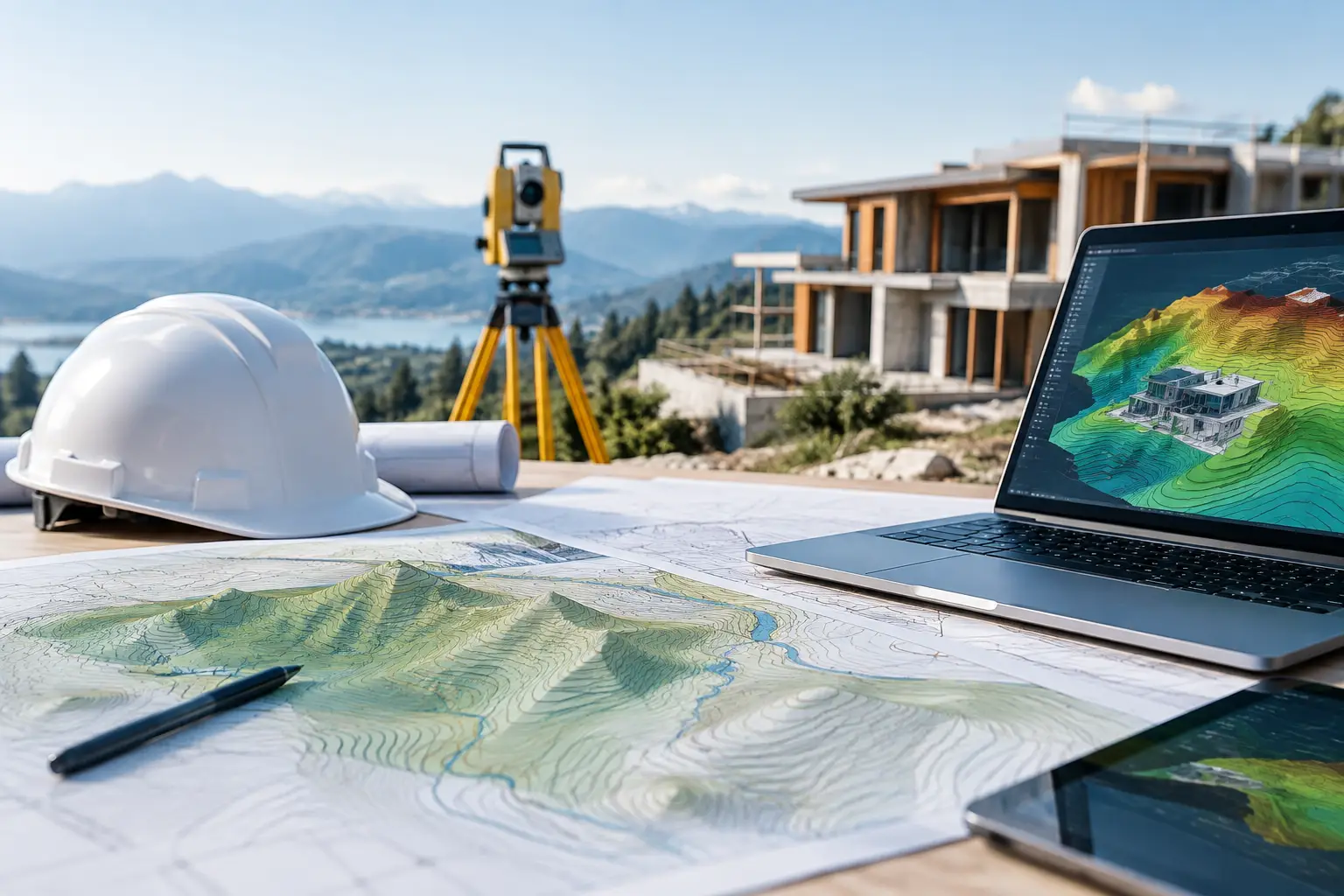
A terrain model can be geometrically accurate and still be wrong by several feet. The usual cause is not poor LiDAR or a bad import. It is a vertical datum mismatch. This vertical datum guide explains what that means in practical BIM terms, where errors enter the workflow, and how to keep surveyed, terrain, and building levels aligned.
What a vertical datum actually controls
A vertical datum is the reference surface used to express an elevation. When a point is recorded as 102.35 m or 335.80 ft, that number has no useful meaning without knowing what it is measured from.
For a building model, teams often work from a project datum such as Finished Floor Level, a local benchmark, or a survey grid. Public terrain datasets, however, are commonly supplied against a national vertical datum. In the United States, that may be NAVD88. In the UK, it is commonly Ordnance Datum Newlyn. A survey may instead use a local site benchmark or an ellipsoidal height derived from GNSS observations.
These references are not interchangeable. The ground may appear to sit too high, too low, or both relative to other referenced information if the source datum is not identified and managed before import.
Why a correct horizontal coordinate system is not enough
Project teams are used to checking coordinate systems, northing and easting values, and units. Vertical reference deserves the same discipline. A site can occupy the correct location on a map while its terrain is offset vertically from the structural model, drainage design, or survey control.
This becomes expensive when the model is used for more than a visual context. A 1 m vertical shift may not be obvious in a perspective view, but it can distort retaining-wall heights, accessible-route gradients, cut-and-fill assumptions, and invert-level coordination. Even a smaller discrepancy can cause confusion where finished floor levels and external thresholds are tightly controlled.
The problem is often hidden by software settings. Revit levels, for example, can be presented relative to Project Base Point or Survey Point. A terrain import may use real-world elevations while the building has been modelled around an arbitrary internal zero. Neither approach is inherently wrong. The issue is failing to state and preserve the relationship between them.
The three height types to separate
Orthometric height
Orthometric height is what most construction teams mean by elevation above sea level. It is measured relative to a geoid-based vertical datum, such as NAVD88 or Ordnance Datum Newlyn. National mapping, engineering surveys, and many public LiDAR products commonly use this type of height.
For most BIM terrain workflows, orthometric heights are the preferred basis because they relate to the benchmark values used in survey and civil documentation.
Ellipsoidal height
Ellipsoidal height is measured from a mathematical reference ellipsoid used by satellite positioning systems. GNSS equipment can report ellipsoidal heights directly, but these are not normally suitable for coordination with conventional surveyed levels unless a geoid model has been applied.
The separation between the ellipsoid and the geoid varies by location. It can be tens of metres. Treating ellipsoidal height as a site elevation above sea level produces a large, consistent vertical error.
Local or assumed datum
A local datum establishes an arbitrary zero for a project. A survey might set a site benchmark to 100.000 m, for example, to keep values positive and manageable. This can be perfectly appropriate for a contained project, provided every consultant understands the basis and a known conversion to the national datum is retained.
Local datums are convenient. They are also risky when terrain data, planning context, utilities records, and survey information arrive from different sources.
A practical vertical datum guide for design teams
Before generating or importing terrain, establish one short datum record for the project. It should state the horizontal coordinate reference system, the vertical datum, the elevation unit, and the reference used by the BIM model. This is a coordination requirement, not GIS paperwork.
Start with the topographical survey if one exists. Check the title block, survey notes, and control-point schedule. Look for explicit wording such as “levels refer to NAVD88”, “heights to ODN”, or “local datum, benchmark TBM01 = 100.000 m”. If the drawing states only “metres” or “elevations”, ask the surveyor for clarification before assuming a national datum.
Next, check the terrain-data metadata. Official elevation data can be highly accurate but still unsuitable for direct comparison if its vertical reference differs from the survey. Confirm whether the source heights are orthometric or ellipsoidal, whether a geoid transformation has been applied, and whether values are expressed in metres or feet.
Then define the model relationship. The clearest option for large, coordinated sites is often to retain real-world survey elevations in the shared coordinate system and place building levels accordingly. For smaller architectural models, teams may choose an internal zero at finished floor level. In that case, document the offset precisely: for example, “Project Level 0.000 m equals 124.630 m ODN.”
Finally, test the result against known points. Compare at least two or three identifiable locations, such as a survey benchmark, road centreline, kerb level, or spot level near the building footprint. Do not rely on a single point, particularly where the terrain source has a different capture date or resolution from the site survey.
Importing terrain into Revit without losing the level relationship
For a Revit workflow, import XYZ points only after confirming the point file uses the intended units and elevation reference. The X and Y positions must match the shared-coordinate basis where applicable, while Z values must remain in the stated vertical datum.
Create or verify the project’s Survey Point and Project Base Point strategy before producing a Toposolid. If the building is modelled around an internal origin, establish a documented vertical offset rather than manually moving terrain until it looks right. Manual adjustment makes future survey updates difficult to reconcile.
Keep the source file unchanged. If an offset is required, create a clearly named derived file or record the transformation in the model documentation. A filename such as `SiteTerrain_NAVD88_ft_offset-12.450ft.xyz` is far more useful than `terrain_final_v3.xyz`.
Point density also matters. Dense LiDAR may be useful for checking swales, embankments, and drainage paths, but importing every point can make a Revit model slow. Decimate intelligently while preserving breaklines and critical grade changes. A terrain surface that performs well and retains the right site behaviour is more valuable than an overloaded model with marginally more points.
Common vertical datum failures
The most serious mistakes tend to be simple. A team may import a public terrain file expressed in metres into a feet-based model, producing an obvious but sometimes overlooked scale problem. More subtle is an orthometric-versus-ellipsoidal mismatch, where the terrain looks plausible but is shifted by a substantial amount.
Another frequent error occurs when a local survey datum is compared directly with nationally referenced terrain. The shape of the land may match closely, but every point is offset by the same amount. That is a datum transformation issue, not a reason to distort the terrain surface.
Capture date should also be considered. Public LiDAR may predate recent earthworks, demolition, road construction, or landscape changes. A correct datum cannot compensate for outdated ground conditions. Use official terrain data for early-stage context and broad grading understanding, then replace or supplement it with a current topographical survey where design decisions depend on existing levels.
When public terrain data is sufficient
Public elevation data is often effective for feasibility studies, massing, masterplanning, landscape concept work, catchment understanding, and early drainage conversations. It gives design teams editable terrain in real-world coordinates without manually tracing contours or working inside specialist GIS software.
It is not a substitute for project-specific survey control when setting out, detailed grading, threshold levels, or civil construction information. The appropriate source depends on the decision being made. Early design needs credible context quickly; technical coordination needs verified, current control.
A reliable site model begins with a simple question: what is zero? Answer it before the terrain enters Revit, Rhino, SketchUp, Archicad, or Grasshopper, and record the answer where every consultant can find it. That small check protects the levels decisions that follow.